

.png)
Get monthly updates and savvy success stories. Straight to your inbox.
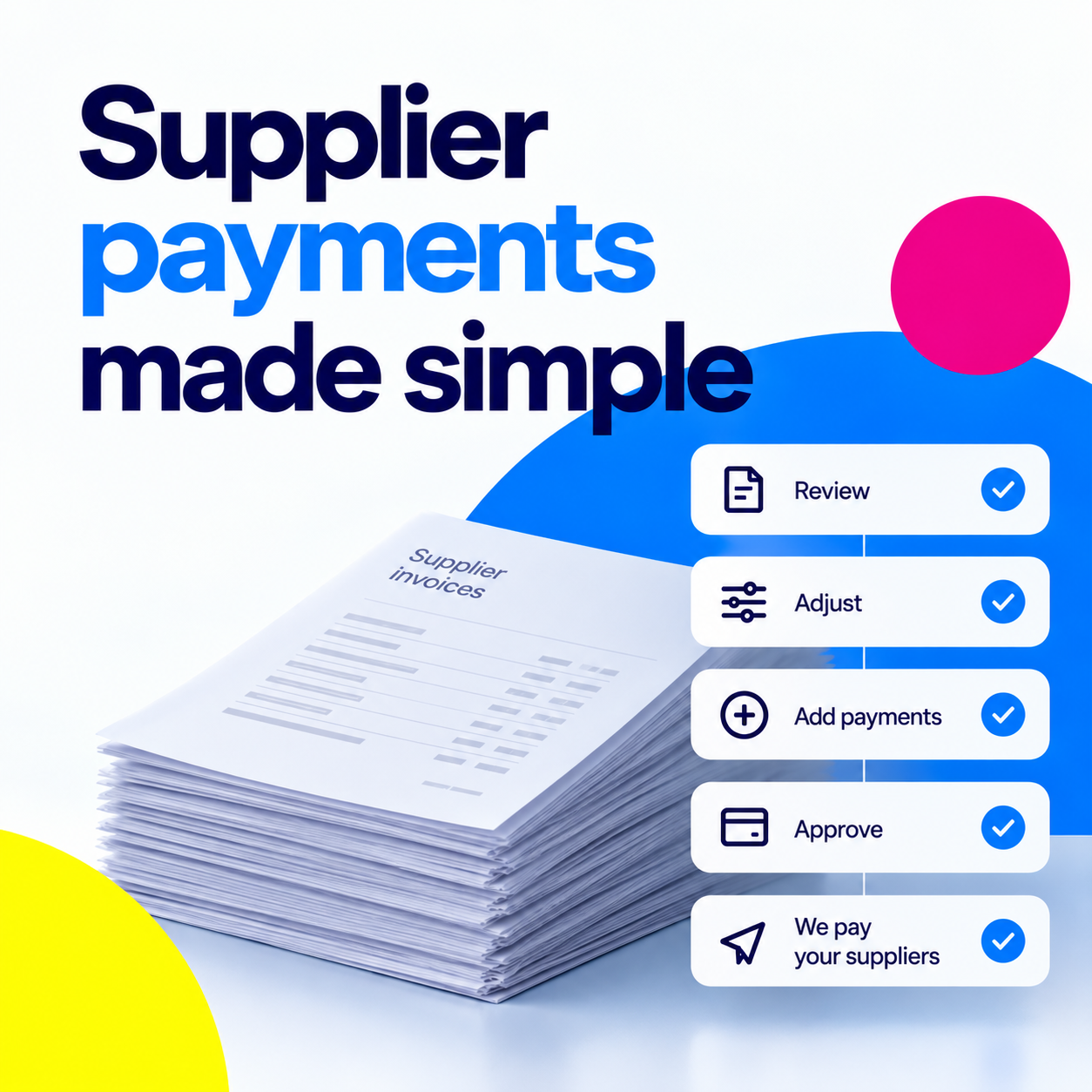
Paying suppliers can quickly become time-consuming as your business grows. Instead of manually working through individual payments, Addition Finance lets your finance team prepare a supplier payment run for you to review and approve.
You stay in control of what gets paid and how much, while Addition takes care of making the individual supplier payments on your behalf.
In this guide, we'll show you how to review a supplier payment run in Addition Finance, make changes to individual payments, approve the final amount and transfer the funds.
What Is a Supplier Payment Run?
A supplier payment run groups together the bills your business needs to pay.
Your Addition finance team prepares the payment run for you based on when your supplier bills are due. Depending on your business, this could be done weekly, fortnightly or monthly.
Once it's ready, you'll receive a task asking you to review it.
You don't have to simply accept the suggested payments. Before approving the payment run, you can add payments, remove bills you don't want to pay yet and change how much of an individual bill you want to pay.
Step 1: Open Your Supplier Payment Run
When a supplier payment run is ready, you'll see it in your Addition tasks.
Open the task to go directly to Supplier Payments, where you'll see any payment runs waiting for your approval.
Select Review to open the payment run.
Step 2: Check the Payment Summary
Start by reviewing the summary at the top of the payment run.
Addition shows you the payments being proposed, including the currencies you'll need to pay in and their GBP equivalent - or USD equivalent for US clients.
You'll also see the total amount required.
For payments involving different currencies, Addition may include a small additional amount in the transfer to allow for short-term movements in foreign exchange rates. This isn't an additional cost; it's there to make sure enough funds are available if exchange rates move before the payments are made.
Next, scroll through the individual bills included in the payment run.
These are suggested payments based on their due dates, so this is your opportunity to check that you're happy for each one to be paid.
Step 3: Add Any Other Payments You Want to Make
If something isn't included in the suggested payment run, you can add it before approving.
For example, you may know that an upcoming PAYE payment to HMRC needs to be made.
Add the payment to the run and it will be included in your updated total.
This means you can make adjustments based on what you know is happening in the business rather than being restricted to the original list of suggested payments.
Step 4: Exclude a Bill You Don't Want to Pay Yet
You can also remove a suggested payment.
Perhaps you're currently discussing an invoice with a supplier or there's something about the bill that needs to be resolved before you pay it.
Simply exclude that bill from the payment run.
The bill isn't being ignored - you're simply choosing not to include it in this particular round of payments.
Step 5: Make a Partial Payment
You don't always have to pay the full value of a bill.
For example, you might have agreed with a supplier to pay 50% upfront, with the remaining balance due later.
Open the bill you want to change, select Edit and enter the amount or percentage you want to pay.
Addition will update the payment run to reflect the partial payment.
This gives you the flexibility to match supplier payments to the agreements you've actually made rather than automatically paying every bill in full.
Step 6: Review and Approve the Final Payment Run
Once you've made your changes, check the payment summary again.
At this point, make sure you're happy with:
- The suppliers being paid
- Any payments you've added
- Any bills you've excluded
- Partial payments you've changed
- The currencies involved
- The total amount being paid
When everything looks right, select Approve and confirm your approval.
Your payment run is now ready to be funded.
Step 7: Transfer the Funds
Rather than asking you to make every supplier payment individually, Addition simplifies the next step.
You'll be given a summary showing the amount you need to transfer to the designated client account.
You make one transfer, and Addition manages the individual supplier payments on your behalf.
Once you've made the transfer, select Funds Transferred in Addition.
The same approach is also used for payroll payments.
Step 8: Addition Takes It From Here
Once you've confirmed that the funds have been transferred, there's nothing more you need to do.
Your Addition finance team confirms the funds have arrived and then manages the payments to your suppliers.
You'll be notified once the process is complete, and the payment run will show as completed inside Addition.
That's it: you've reviewed what's being paid, made any necessary changes, approved the payment run and transferred the funds. Your finance team handles the rest.
Why Use Supplier Payment Runs?
Supplier payment runs become particularly useful as the number of suppliers you work with grows.
If you only have a handful of payments, managing them individually may not seem like a major job. But a retail, hospitality or manufacturing business could be dealing with dozens or even hundreds of suppliers.
Instead of a founder or senior team member spending time making each payment individually, the process becomes:
Addition prepares the payments → you review and make changes → you approve → you make one transfer → Addition pays the suppliers.
You still decide what gets paid, but you don't have to handle all of the payment administration yourself.
Frequently Asked Questions About Supplier Payments
What is a supplier payment run?
A supplier payment run is a group of supplier bills prepared for payment at the same time. In Addition Finance, your finance team prepares the suggested payments based on their due dates and sends the payment run to you for review and approval.
How often can supplier payment runs be made?
Depending on how your business operates, supplier payment runs could be prepared weekly, fortnightly or monthly.
Can I change a supplier payment before approving it?
Yes. You can review the suggested payments and make changes before approving the payment run.
For example, you can add another payment, exclude a bill you don't want to pay yet or change the amount being paid towards an individual bill.
Can I make a partial payment towards a supplier bill?
Yes. If you've agreed to pay only part of an invoice, you can edit the bill and choose the amount or percentage you want to pay in that payment run.
What if I don't want to pay a particular bill yet?
You can exclude it from the payment run.
This can be useful if you're discussing the invoice with the supplier, there's a dispute or you simply don't want that particular bill included in the current payment run.
Does Addition Finance make supplier payments for me?
Once you've reviewed and approved the payment run, Addition provides the amount you need to transfer to the designated client account. After you transfer the funds and confirm this in the platform, your Addition finance team manages the individual supplier payments on your behalf.
If you have anymore questions about our accounting services for SMEs, please visit our FAQs page.
Spend Less Time Managing Supplier Payments
The more suppliers your business works with, the more time payment administration can take.
Addition Finance gives you a simpler way to stay in control. Your finance team prepares the payment run, you decide what should be paid, and Addition takes care of making the individual payments.
That means less time working through supplier payments one by one and more time to focus on running your business.
Want to see how supplier payments work in Addition Finance? Book a call with our team for a personalised demo of the platform.

